View and Edit Target Layer Fields
Note: Changes are automatically saved when you leave the Edit Target Layer Fields page.
 Edit Target Layer Fields Workspace
The Edit Target Layer Fields workspace consists of the following sections.
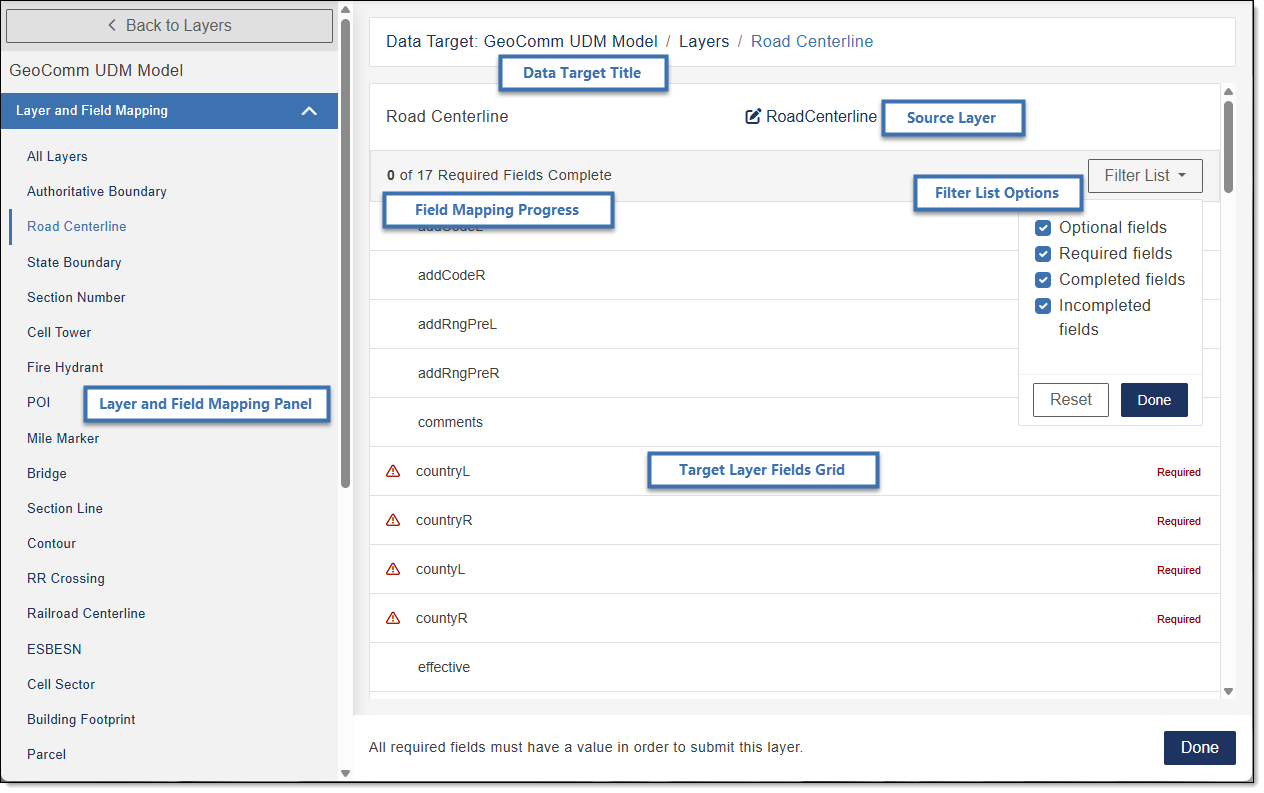
- Layer and Field Mapping Panel: The navigation bar in the Layer and Field Mapping Panel displays a list of the layers for the selected data target. Clicking a layer opens the field mapping page.
- Data Target Title: The title provides the name of the data target you are configuring, as well as the selected layer.
- Source Layer: Identifies the layer name from the customer's uploaded source data.
- Filter List Options: The Filter List allows you to filter the list of fields to view only Optional, Required, Completed, or Incompleted fields.
- Field Mapping Progress: Shows current and total number of required fields to be mapped from the source to the target for this layer or table.
-
Target Layer Fields Grid: The grid consists of the following sections.
-
Status The status is shown prior to the field name when a field is required to be mapped. Fields that are required are identified by "Required" in the grid and display a red warning triangle when empty.
Status Descriptions
-
 Success: The field is successfully mapped.
 -
 Alert: The source and target field types do not match and should be reviewed to minimize the risk of data loss. Ensure the source data is well suited for the target field before running any jobs.
 -
 Warning: Required fields must be mapped in order to run your job.
-
- Target Fields: Lists all target fields for the selected layer and identifies any required fields that must be mapped. Select a target field name to open a drop-down and view, edit, or map the fields for the layer. Note, you are selecting the field from the source data that best represents the field in the data target.
- Mapping: Shows the target fields that are mapped for the data layer.
-
-
Done: Select when you have finished mapping your target fields for the layer. Changes made are saved and the Data Target Card is updated.
View Target Layer Fields
To view target fields for a layer, the layer must first be mapped.
- In the Navigation Bar, select Data Targets.
- Locate the Data Target Card whose map layer(s) you want to view.
-
Click Layer and Field Mapping.
The Layer configuration window opens.
- In the Target Layer Name column, locate the layer whose fields you want to view.
-
Click View Fields.
Tip: To open View Fields, click the layer in the Layer and Field Mapping navigation bar for any layer that has been mapped.
Map a Target Field in a Data Layer
- In the Navigation Bar, select Data Targets.
- Locate the Data Target Card whose field(s) you want to edit.
-
Click Layer and Field Mapping.
The Layer configuration window opens.
- In the Target Layer Name column, locate the target layer whose field(s) you want to edit.
-
In the Mapping column, click the View Fields.
A list of the target fields for the layer is shown.
-
Click a target field name.
Options for field mapping are shown.
-
Select the field mapping option you want to set up and map the correct field(s) to complete your
selection. See Field Mapping for additional details.
Notes
Note: Only one mapping type can be selected per field. For example you can not select Field Mapping and Spatial Lookup.
Note: The Layer must be mapped before you can map the field.
Note: Truncation during job runs - When data is transformed from source to target, any source value that exceeds the target field length is truncated to fit.
If using regular field mapping or conditional field mapping, a truncation will trigger a critical fallout notification. However, tabular and spatial field mapping do not support truncation fallouts, so no notification is generated in those cases.Field Mapping
Field Mapping allows you to complete basic one to one mapping. Select this option, click in the Select a field from your data or insert text box, and complete one of the following to choose the source of the field to map to your data target.
-
Select a Source Field: Select a source field to map the target field to and view the description in the center of the row.
When adding a date, use the date picker that appears when the field is selected.
- Insert as Text: In the Select a field from your data or insert text box, type text that meets requirements shown following the text box (e.g., Type: Text, Max Characters: 2). Click Insert as Text.
- To map another source field, click Add another field to expand and repeat the Select a Source Field or Insert as Text step above.
- (Optional) If multiple fields are mapped, by default, the fields are separated with a space. To remove the space, click the checkmark in the Add space between fields check box.
Spatial Lookup
Spatial Lookup allows users to select a field within a polygon layer to populate a point or line field value based on the relationship between the feature and the polygon layer. This functionality is useful to ensure data synchronization between layers when attributes are not maintained in the source data.
For example, should the user want to populate the County Name field in their Address Points layer, they could map a spatial lookup to pull values from the County Name field within the County Boundary layer to populate the County field in their Address Points layer. The end result is an Address Points layer whose County field matches the polygons in the County Boundary layer within the data target.
Select the Spatial Lookup option and complete the following to setup Spatial Lookup.
-
Segment Side: Select the segment side, Left or Right.
A description for the segment is shown to the right and includes Description, Type, and Max Characters.
Selecting a segment side is only available when field mapping a line segment.
-
Offset (meters): Enter the offset value in meters or click in the box and use the up and down arrows to set the value.
-
Spatial Lookup From: Select Source or Target.
Source and Target work the same with the exception of where each option gets its information. Select Source to use data from the layers in the data uploaded or select Target to use data from the layers in the target.
The example below describes a scenario when selecting Source.
Example
Scenario: You are Field Mapping the Site Structure Address Point (SSAP Site Structure Address Point) layers for the County field using Spatial Lookup.
Setup: In this scenario, the following field mapping set up was completed.
-
County field was selected.
-
The Spatial Lookup option for the field mapping type was selected.
-
County Boundary in the Layer Name drop-down was selected.
-
County in the Field Name drop-down was selected.
Result:
-
The system identifies the polygon in the County Boundary where the address point is located using a spatial lookup and pulls the information from that polygon's County field data.
-
When the address point gets created in the target layer, the County field name is pulled from the County Boundary's County field (e.g., Benton, Stearns) and adds the county name to the SSAP's County field.
-
Source: Select Source to use the data in its original projection.
-
Target: Select Target to use the data in the projection set by the data target.
-
Conditional Lookup
Conditional Lookup allows users to select an optional field population methodology should their first chosen field produce a blank or null result. Users can select a field from their data or insert a text string. This does not overwrite existing user data.
For example, should the user want to populate the Municipality field in the NENA data schema, they would first map to the Municipality field in their source data and then add “UNINCORPORATED” as a backup should the Municipality field be blank. This satisfies NENA requirements for NG9-1-1 Next Generation 9-1-1. The next evolutionary step in the development of the 9-1-1 emergency communications system known as E9-1-1 features and functions and add new capabilities. NG9-1-1 will eventually replace the present E9-1-1 system. NG9-1-1 is designed to provide access to emergency services from all sources, and to provide multimedia data capabilities for PSAPs and other emergency service organizations. by ensuring records with no value in their Municipality field contain the text “UNINCORPORATED” instead.
Note: Conditional Lookup populates fields that are null or blank and does not overwrite existing data.
Select this option and complete the following to setup Conditional Lookup.
-
Field Name: Use Field Name to select a field from your data or insert text for the field to be populated with the conditional field data when this data field is null or blank.
Click the Field Name - Select a field from your data or insert text box and complete one of the following.
-
Select a Field Name: Select a field name to populate with the information selected in the Conditional Field Name below if the field name is null or blank.
- Insert as Text: In the Field Name > Select a field from your data or insert text box, type text to be populated with the conditional field data below when the field is null or blank. Text entered must meet the requirements shown following the Field Name box, (e.g., Type: Text and Max Characters: 2). Click Insert as Text.
- To add another field name, click Add another field to expand and repeat the Select a Field Name or Insert as Text step above.
- (Optional) If multiple fields are selected, by default, the fields are separated with a space. To remove the space, click the checkmark in the Add space between fields check box.
-
-
Conditional Field Name: Use Conditional Field Name to select a field from your data or insert text to be added to the Field Name selected above if the value is null or blank.
Click the Conditional Field Name - Select a field from your data or insert text box and complete one of the following.
-
Select a Conditional Field Name: Select a conditional field name in the Conditional Field Name box that should be used if the selected field name above is null or blank.
-
Insert as Text: In the Conditional Field Name > Select a field from your data or insert as text box, type text that should be used if the selected field name above is null or blank. Text entered must meet the requirements shown following the Field Name box, (e.g., Type: Text and Max Characters: 2). Click Insert as Text.
-
To add anther conditional field name, click Add another field to expand and repeat the Conditional Field Name or Insert Text step above.
If multiple fields are selected, all field data must be null or blank before initiating the selections in the conditional field name.
If multiple fields are setup, the field names are populated with the conditional field names, respectively.
-
(Optional) If multiple fields are selected, by default, the fields are separated with a space. To remove the space, click the checkmark in the Add space between fields check box.
-
Tabular Lookup
Tabular Lookup allows users to populate a field based on a table. It utilizes a common field to link records from the source layer to records in a user defined table.
For example, should a user want to populate their PSAP Public Safety Answering Point. A set of call takers authorized by a governing body and operating under common management which receives 9-1-1 calls and asynchronous event notifications for a defined geographic area and processes those calls and events according to a specified operational policy. URN field within their ESN Emergency Service Number. A three to five digit number representing a unique combination of emergency service agencies (law enforcement, fire and emergency medical service) designated to serve a specific range of addresses within a particular geographical area, or Emergency Service Zone (ESZ). The ESN facilitates selective routing and selective transfer, if required, to the appropriate PSAP and dispatching of the proper service agency(ies). layer, they can setup the tabular lookup. It would link the ESN layer to the user defined table via the ESN field, and use the associated PSAP URN values from that table to populate the chosen attributes. The result would be an ESN layer with populated PSAP URN values in the data target.
Data Preparation Guidance and Best Practices
To Avoid Unintended NULL Values
-
Your lookup table should include all possible values that exist in the source data
-
This includes values that you may intend to remain unchanged
-
If a value is not present in the lookup table, GIS Geographic Information System. A computer application that involves storing and manipulating electronic maps and related data. Also, mapping software combining spatial information about where places and events are located with data attributes describing those places and events. Data Hub will assume it should be cleared
Best Practices
-
Review source data values before creating a lookup table
-
Ensure the lookup table is complete, even for values that map to themselves
-
Validate lookup coverage prior to running the process on large datasets
What Happens When a Value is Not Found
When running a tabular lookup, GIS Data Hub updates attribute Nonspatial information about a geographic feature in a GIS, usually stored in a table and linked to the feature by a unique identifier. For example, attributes of a river might include its name, length, and sediment load at a gauging station. values based on a provided lookup table. If a record’s existing value does not have a matching entry in the lookup table, GIS Data Hub updates that record to a null value. As a result, all original values in the source data should exist in the lookup table to ensure no data is loss.
Select this option and complete the following to setup Tabular Lookup.
-
Field Name (Source): Use Field Name (Source) to select a field from your data or insert text for the field to be populated with the tabular field data in the second column of the .csv file when the data from the source field matches the data in the first column of the .csv file.
Click the Field Name (Source) - Select a field from your data or insert text box and complete one of the following.
-
Select a Field Name: Select a field name to populate with the second column of data from the uploaded .csv file when the field data matches the data in the first column of the uploaded .csv file.
- Insert as Text: In the Field Name > Select a field from your data or insert text box, type text to be populated with the second column of data from the uploaded .csv file when the field data matches the data in the first column of the uploaded .csv file. Text entered must meet the requirements shown following the Field Name box, (e.g., Type: Text and Max Characters: 2). Click Insert as Text.
- To add another field name, click Add another field to expand and repeat the Select a Field Name or Insert as Text step above.
- (Optional) If multiple fields are selected, by default, the fields are separated with a space. To remove the space, click the checkmark in the Add space between fields check box.
-
-
File Drop Zone: Use the file drop zone to add a .csv file to use for Tabular Lookup field mapping.
Browse to Upload File
Complete the following to browse to a location and upload your .csv file.
- Click in the File Drop Zone.
- Browse to, and select the data file you want to upload.
-
Click Open.
Files must be a single .csv file with two columns and have a maximum file size of 3 MB.
If the wrong file is selected, click
 to delete. Repeat the steps above to select a different file.
Drag and Drop to Upload File
Complete the following to drag and drop the .csv file you want to upload.
- Locate the .csv file you want to upload and submit for processing.
-
Drag the data file you want to upload and drop the file in the File Drop Zone.
Files must be a single .csv file with two columns and have a maximum file size of 3 MB.
If the wrong file is selected, click
to delete. Repeat the steps above to select a different file.
-
-
To continue to the next field, click Next Field.
The center column in the row is updated with the selection and a green checkmark appears before the field name indicating complete.
- Repeat until all required fields have been mapped.
-
Click Done.
If you have not finished mapping all required fields and select Done. Changes made are saved but the layer is not complete until all required fields are mapped.
Remove a Mapped Source Field
- In the Navigation Bar, select Data Targets.
- Locate the Data Target Card whose field(s) you want to edit.
-
Click Layer and Field Mapping.
The Layer configuration window opens.
- In the Target Layer Name column, locate the target layer whose field(s) you want to remove.
-
In the Mapping column, click the View Fields.
A list of the target fields for the layer are shown.
-
Select the target field name for the source field you want to remove.
-
Click the X in the mapped source field box.
The target field is no longer mapped to the source field.
- Click Done.
Filter the Target Fields List
- To filter the target field list, click Filter List.
- Click the check boxes to add or remove the checkmark(s).
-
Click Done.
Items selected are filtered for you to view and Filter List changes to Filtered.
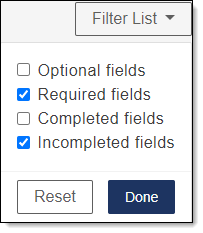
Note: To return to the default filter, open the filter list and click Reset.
Edit Source Layer from View Fields
- In the Navigation Bar, select Data Targets.
- Locate the Data Target Card whose source layer you want to edit.
-
Click Layer and Field Mapping.
The Layer configuration window opens.
- In the Target Layer Name column, locate the target layer whose source layer you want to edit.
-
In the Mapping column, click View Fields.
A list of the fields for the layer is shown.
-
In the title bar, click the source layer.
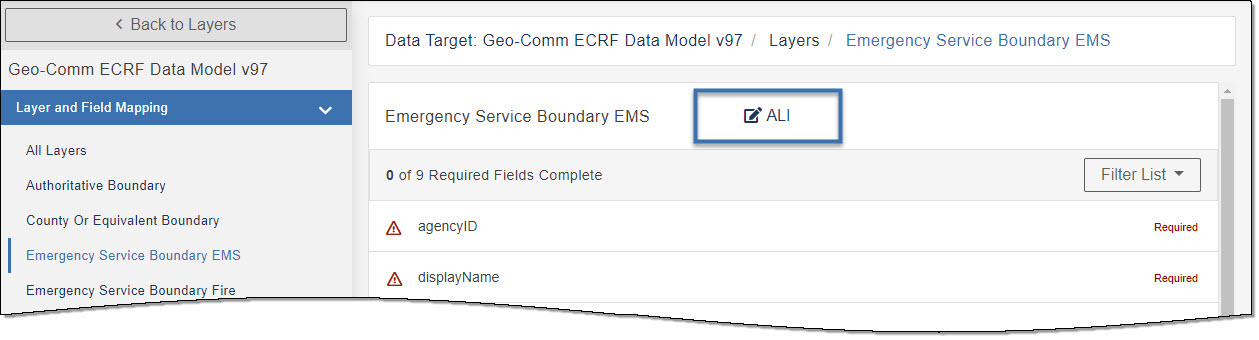
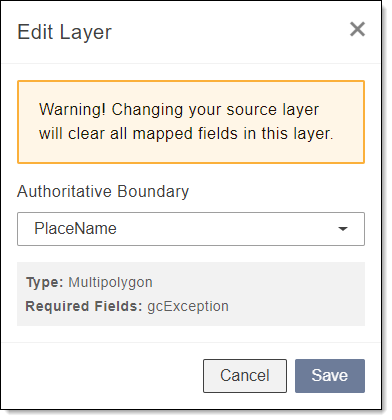
The Edit Layer pop-up opens displaying the target layer name, type of map layer, and required fields.
-
Under the source layer name, expand the drop-down and select a source data.
Changing the source layer clears all mapped fields for the layer.
- Click Save.
- Click Done.